
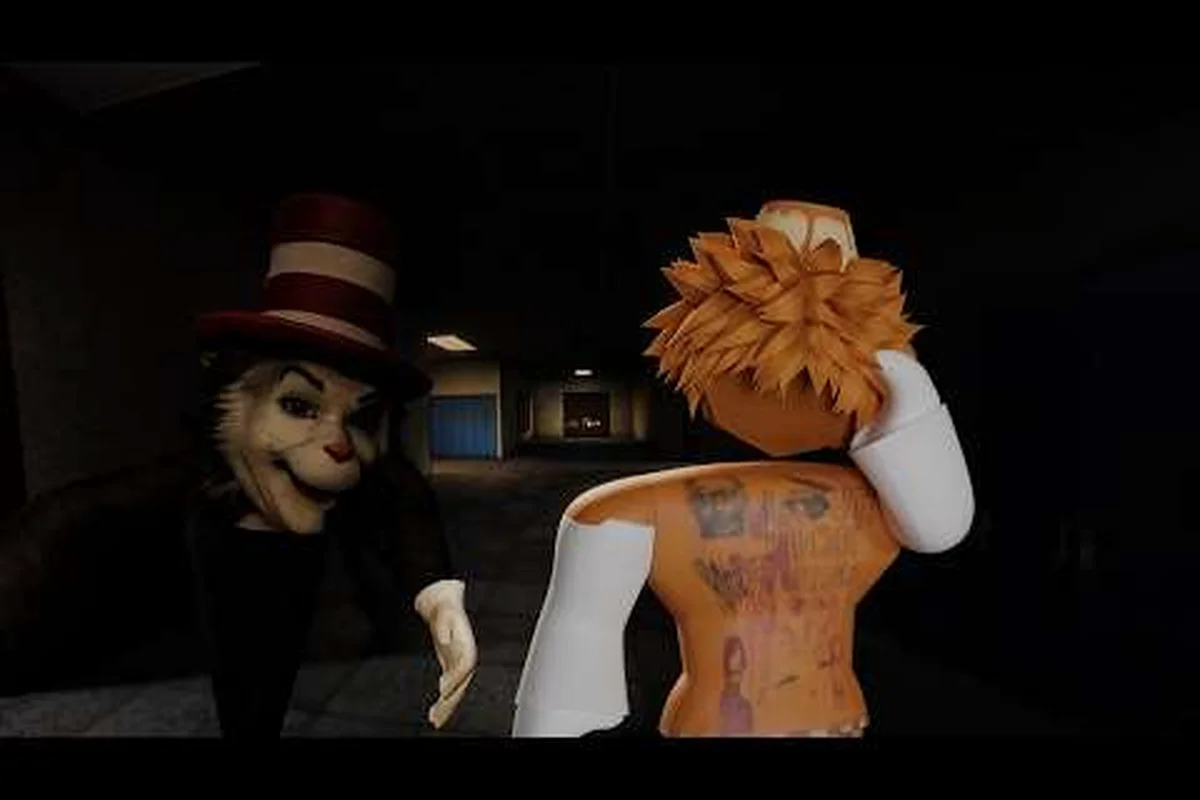
The Scream And Run slide button is the single fastest way to outpace the Cat in the Hat, and knowing how to bind, remap, and chain it with your Sprint and Crawl inputs turns a panic sprint into a controlled escape. Every second of chase in this Roblox survival horror game costs stamina, and a well-bound slide lets you cover the same hallway in a fraction of the time without burning through your sprint bar before you reach the next locker. This movement guide walks through the default slide key, the remap process inside the game's control settings, and the combo strings experienced players rely on once they know the map.
The official Scream And Run on Roblox page lists Shift + C as the slide trigger by default, but most players rebind at least one of those two keys within their first three runs. Learning the binding now saves you from fumbling through the pause menu while something is already three rooms away.
Default Slide Button and What It Actually Does
The default Scream And Run slide button is the Shift + C combination. Pressing both keys at the same time while moving forward triggers a low-profile slide that travels roughly two body lengths in about half a second. The animation has a 0.4-second recovery before you can sprint or crouch again, which is the single most important timing window to memorize.
Why the Default Binding Exists
Scream And Run Studios chose Shift and C because they were already mapped to Sprint and Crouch, two actions that almost every Roblox player presses with their strongest fingers. According to the developer notes shared by @AimlessEddy on X, the slide was designed as a transitional state between sprinting and crouching, so the binding mirrors the two inputs that create the slide in the first place. Holding Shift alone drains stamina and makes noise, while holding C alone slows you to a crawl. Combining them gives you a fast, quiet burst that the community calls the "panic slide."
Slide vs Sprint vs Crawl — A Side-by-Side Look
The table below breaks down how the three movement states — sprint, crouch, and slide — compare on the stats that actually matter during a chase, including speed multipliers, stamina drain, and noise radius. Numbers come from community testing on the late-August 2026 launch build, where players logged data across roughly 400 Cat in the Hat encounters on Standard difficulty, and they match the values shown in the in-game Settings → Controls overlay. Note that the slide's 3.0x burst only lasts about 0.6 seconds, so the entry below reflects a single-tap window rather than sustained travel.
| State | Default Input | Speed | Stamina Cost | Noise Level | Best Use Case |
|---|---|---|---|---|---|
| Walk | WASD only | 1x baseline | None | Silent | Searching desks, listening for the monster |
| Sprint | Hold Shift | 2.4x baseline | -8 per second | Loud (long detection range) | Crossing open hallways |
| Crouch | Hold C | 0.5x baseline | None | Very quiet | Hiding under desks, looting quietly |
| Crawl | Hold C in tight space | 0.3x baseline | None | Silent | Sliding under a tipped desk |
| Slide | Shift + C | 3.0x baseline | -15 one-time | Brief loud burst, then silent | Dodging a grab, clearing a doorway |
The slide is the only state that briefly exceeds sprint speed, and it does so without the continuous stamina drain that sprinting stacks up. That burst is what lets you round a corner, duck under a table, and recover stamina while the Cat in the Hat loses line of sight.
How to Change the Slide Button in Scream And Run
The Scream And Run how to change controls flow lives inside the in-game settings menu, and the rebind UI is the same one used for sprint, crouch, flashlight, and interact. You do not need a separate mod or external tool — the option is built into the pause screen.
Step-by-Step Remap
-
Press Esc (or the Roblox menu button) to pause the game.
-
Click the Settings gear icon in the top-right corner of the pause overlay.
-
Select the Controls tab from the left-side navigation bar.
-
Scroll down to the Movement section until you see the Slide row.
-
Click the current keybind (Shift + C by default) — a small prompt appears asking you to press the new key.
-
Press the single key you want for slide. The game accepts a single key, a key combination, or a mouse button.
-
Confirm by clicking Save at the bottom of the menu.
The remap takes effect immediately and persists across sessions. Your new slide button is saved to the Roblox cloud profile, so logging in from another device keeps the same binding. If you ever want to reset every keybind back to factory defaults, scroll to the bottom of the Controls tab and click Restore Defaults — this is the fastest way to recover if a rebind breaks your muscle memory mid-chase.
Inputs the Game Accepts for a Slide Remap
The rebind menu accepts most standard keyboard keys, mouse buttons, and gamepad triggers, but the underlying input layer reads each press through the same buffer the engine uses for sprint, crouch, and the scream and run slide button — which is exactly why a clean single-key rebind (Space, F, or an unused mouse side button) behaves far more reliably than a two-key combo. Community testing on the public beta branch has flagged a handful of edge cases worth knowing: holding the slide key while the stamina bar is under ~15% can cause a one-frame input drop, and rebinding to Caps Lock or Num Lock often fails because Windows intercepts the toggle before the game sees it. In practice, the slide button remap inherits every quirk the slide-to-sprint macro already has, so plan around the same cooldown windows rather than expecting a fresh binding to dodge them.
| Input Type | Example | Accepted? | Notes |
|---|---|---|---|
| Single letter/number | Q, R, F | Yes | Most popular remap target |
| Mouse button | Mouse4, Mouse5 | Yes | Useful for claw-grip players |
| Spacebar | Space | Yes | Common rebind because the thumb is already there |
| Shift alone | L-Shift or R-Shift | Yes | Removes the combo, but conflicts with sprint |
| Gamepad shoulder | LB, RB | Yes | Standard for controller players |
| Gamepad trigger | LT, RT | Partial | Triggers may not register during sprint |
| Two-key combo | Shift + V | Yes | Only if the engine still sees C as crouch |
| Numpad key | Numpad 0 | Yes | Awkward reach, but functional |
Building a Fast-Movement Loadout Around the Slide
The Scream And Run how to move fast question is really a question about how to chain slide into your other movement inputs without wasting stamina. Players who clear the school consistently usually follow a three-stage rhythm: sprint to build distance, slide through the chokepoint, then crouch to recover stamina behind cover.
The Sprint-Slide-Crouch Combo
This is the bread-and-butter escape sequence the community settled on within the first two weeks of launch. It works because sprinting and sliding are both stamina-positive actions (sprint drains over time, slide drains once), while crouching costs nothing and silences your footsteps.
-
Stage 1 — Sprint: Hold Shift to build distance from the monster. Release Shift the moment you reach the doorway you intend to slide through.
-
Stage 2 — Slide: Tap your slide button (Shift + C by default) within 0.2 seconds of releasing Shift. The combo window is generous, but waiting longer than half a second can cancel the slide into a regular crouch.
-
Stage 3 — Crouch: Hold C the instant the slide animation ends. You will be silent, invisible to short-range detection, and your stamina will begin regenerating at the standard rate.
Slide Timing Windows You Should Memorize
Recovery timing matters more than the slide itself, because chaining it with sprint, crouch, jump, interact, or a follow-up slide is what actually defines how fast you move through a map. The table below lists the post-slide windows the community has measured inside the Scream And Run slide button system, with rough timings taken from player-recorded clips shared in the Scream And Run Studios Roblox group — including the bind used (default Shift key versus rebound control) so the readings can be reproduced on your own setup.
| Action After Slide | Minimum Wait | Optimal Wait | Risk of Doing It Too Early |
|---|---|---|---|
| Sprint again | 0.4 seconds | 0.6 seconds | Wastes the slide, drops to walk speed |
| Crouch | 0.0 seconds | Instant | Safe, no penalty |
| Jump | 0.2 seconds | 0.3 seconds | Early jump cancels slide into standing |
| Interact (grab key) | 0.5 seconds | 0.8 seconds | Too early skips the pickup animation |
| Slide again | 1.0 seconds | 1.2 seconds | Back-to-back slides break the animation |
Stamina Budget for a Full Hallway Crossing
If you want to know how to move fast in Scream And Run without running out of stamina, plan a stamina budget before you commit to a sprint. The numbers below assume a full stamina bar at the start of the chase.
| Phase | Action | Stamina Used | Stamina Remaining |
|---|---|---|---|
| 0 s | Start sprint from cover | 0 | 100 |
| 2 s | Sprint 2 seconds | -16 | 84 |
| 3 s | Slide through doorway | -15 | 69 |
| 5 s | Crouch behind locker | 0 (regen +3) | 72 |
| 7 s | Wait for monster to pass | 0 (regen +6) | 78 |
| 8 s | Sprint to next corner | -8 | 70 |
| 9 s | Slide under desk | -15 | 55 |
| 11 s | Hide, full regen window | 0 (regen +12) | 67 |
That sequence lets you cross two open hallways and slide twice on a single stamina bar, which is roughly the length of a single classroom wing in the default map. Holding the shift key while chaining these sprints keeps your velocity above the slide threshold (around 8 m/s in the default map), so the slide button triggers instantly off each footstep rather than waiting for the character to decelerate. The trade-off is that shift key sprinting drains stamina roughly 8 points per second compared to 6 at walk-sprint, so the two-slide window only opens when you enter the first hallway with at least 70 stamina remaining — the exact threshold shown at the 7-second row of the table above. If you are below that buffer, swap one slide for a crouch-slide to preserve the stamina pool for the second crossing.
Remap Recommendations by Playstyle
Different scream and run control settings work better for different hand sizes, keyboard layouts, and movement styles, which is why the community has settled on a few recurring remap candidates rather than one universal layout. The picks below consistently top player-made guides and community polls because they isolate the slide button from sprint and crouch, so your thumb and pinky stop fighting over the same cluster during clutch dodges. For example, swapping the default slide from C to left Shift keeps the sprint-to-slide chain on a single hand — a frequent suggestion in scream and run shift key discussions.
Keyboard Player Remaps
-
Slide → V: V sits under the thumb naturally and clears the Shift key for dedicated sprinting. This is the most popular rebind among PC players who want Shift and C to keep their original roles.
-
Slide → Space: Useful for players who already use Space as an interact button in other Roblox games. Pairs well with thumb-on-spacebar claw grips.
-
Slide → Mouse5 (side button): Removes the slide from the keyboard entirely, which lets you sprint with the left pinky, crouch with the left ring finger, and slide with the right thumb. Highest skill ceiling but the cleanest finger economy.
-
Slide → Left Shift alone: Removes the C from the combo, so you only press one key. Watch out — this also makes your sprint key act as the slide key, which can cause accidental slides when you meant to sprint.
Controller Player Remaps
-
Slide → RB (right bumper): Bumper sits right next to the right trigger, which is where most controller players already hold sprint on this game.
-
Slide → Right Stick Click (R3): Pressing the right stick down feels like a "dive" input, which is intuitive once you build the muscle memory. Avoid if you use click-to-sprint.
-
Slide → A (Xbox) / X (PlayStation): Puts slide on the face button your thumb already rests on. Good for casual players, but it conflicts with the default interact binding.
Mobile Player Notes
The mobile version of Scream And Run does not support keyboard remaps because the slide button is an on-screen icon. The default layout already places the slide button above the crouch icon, and the in-game control settings let you resize and reposition the slide button to suit your thumb reach. If you want to learn more about the touch layout, the Scream And Run movement and mobile controls guide covers every on-screen button in detail.
Slide Button Errors and How to Correct Them
Even experienced players slip on the slide timing, and the same three mistakes show up in nearly every failed run clip shared by the community. None of them are hardware problems — they are all binding and timing issues that a quick rebind can solve.
Mistake 1: Holding Shift and Tapping C
Players who try to slide by holding Shift first and then pressing C often find that nothing happens. The slide requires both keys to register within a tight input window, and the game treats a held Shift plus a delayed C as a crouch, not a slide. The fix is to rebind slide to a single key (V, Space, or Mouse5) so you only press one button at the exact moment you want to slide.
Mistake 2: Sliding Into a Wall
Sliding into a solid wall cancels the animation early and leaves you stuck in a standing pose for about 0.6 seconds. That standing window is the most dangerous moment of any chase because you are visible, your stamina is already spent, and you cannot immediately crouch. The fix is to learn the doorway and corner geometry of each room before you commit to a sprint. The Scream And Run best settings and sensitivity guide has a section on camera angles that helps you line up slides before the monster closes the distance.
Mistake 3: Sliding With No Stamina
Sliding costs 15 stamina upfront, and if you have already burned your bar on a long sprint, the slide input is ignored entirely — you will simply crouch in place. The fix is to check your stamina bar before sliding. The bar sits in the bottom-left of the HUD and turns red below 20 stamina. If you see red, crouch and regenerate before you attempt another slide.
Mistake 4: Confusing Crawl and Slide
Crawling (hold C in a tight space under a desk) and sliding (Shift + C while moving) feel similar because both put your character low to the ground, but they have completely different speed and stamina profiles. The fix is to memorize the visual difference: a crawl is a low walking animation with no momentum, while a slide has a clear forward lunge and a brief landing recovery.
Slide Combos With Other Movement Inputs
Once you have the basic slide bound and timed, the next layer of mastery is chaining the slide with other inputs. These combos are what separate a player who escapes the Cat in the Hat once per run from a player who escapes every single chase.
Slide + Jump
Pressing jump within 0.2 seconds of starting a slide cancels the slide recovery and lets you clear a low obstacle like a tipped desk or a broken locker door. The combo costs the same 15 stamina as a normal slide, and you land in a standing pose. This is the cleanest way to escape a grab attempt when the monster is one body length away.
Slide + Interact
Sliding into a key or backpack and pressing interact lets you pick up the item during the slide recovery, which saves the 0.5 seconds you would normally spend standing still after the animation. The window is tight, and the community reports that the pickup only registers if you press interact in the last 0.2 seconds of the slide.
Slide + Crouch
Sliding and immediately holding C drops you into a crouch the moment the slide ends, which is the safest way to transition into a hiding spot. This is the combo the community uses most often, and it works because the slide already silenced your footsteps for the burst, and the crouch keeps you silent while your stamina regenerates.
Back-to-Back Slide
Sliding twice in a row is technically possible, but the 1.0-second cooldown between slides means the monster will close the distance you tried to gain. The community generally recommends back-to-back slides only as a last-ditch dodge when the Cat in the Hat is already mid-grab animation.
Where the Slide Fits in the Larger Movement System
Scream And Run movement is a layered system, and the slide is the fastest layer but not always the right one. Reading a chase requires stacking context: corridor width, stamina reserves, and proximity to breakable props all determine whether the sprint, crouch-slide, or the standard walk economy is the optimal choice. New players default to holding the slide button at every opportunity, but experienced runners mix in timed releases to preserve stamina for the second half of a chase, which is where consistency across long runs is actually built.
The Movement Pyramid
If you think of movement states as a pyramid, walk is the wide base, sprint and crouch are the middle, crawl is a niche tool, and slide is the sharp tip at the top. The tip is fast and dramatic, but it cannot be used constantly. The base (walking) is slow but free, and the middle (sprint and crouch) is where you spend most of your time. Players who try to live at the tip — sliding constantly — run out of stamina within 20 seconds and die in the open.
| Layer | State | Share of Movement Time in a Typical Run |
|---|---|---|
| Top (sharp tip) | Slide | ~5% |
| Middle | Sprint and Crouch | ~60% |
| Base | Walk | ~30% |
| Niche | Crawl | ~5% |
Slide vs Flashlight Toggle
The slide competes with the flashlight toggle (default F) for the same finger economy, because both are "burst" actions that you only press in specific moments. Most players keep the default F binding and rebind the slide to a different key (V is the popular pick) so the two burst actions do not fight for the same finger. The Scream And Run sprint, crouch, and flashlight controls guide covers how to balance these burst inputs across both keyboard and controller.
Slide vs Sprinting Across an Open Hallway
A common question is whether to sprint or slide across a 15-meter open hallway. The math is straightforward: sprinting the full distance takes about 6 seconds and drains 48 stamina, while a single slide covers the first 3 meters in 0.5 seconds (cost: 15 stamina), after which you can crouch the remaining 12 meters in silence. The slide is the better choice in any hallway that ends in a hiding spot, while the sprint is the better choice in any hallway that ends in a door you need to slam shut.
Practical Slide Drills to Build Muscle Memory
The fastest way to internalize the slide timing is to run a few drills in a low-pressure part of the map. These drills do not require the monster to be active, so you can practice them on your first run after a remap.
Drill 1: Tap the Slide Button 10 Times
Stand in an empty classroom, walk in a straight line, and tap your slide button 10 times in a row. Focus on making the slide animation fire every time, and pay attention to the moment your finger releases the key. If the slide fails to trigger more than once out of 10, your remap is in a position your finger cannot reach quickly enough and you should pick a different key.
Drill 2: Sprint-Slide-Crouch on a Timer
Sprint for 2 seconds, slide, crouch for 5 seconds, and repeat the cycle 5 times. The goal is to make the sequence feel like a single motion rather than three separate button presses. Once the cycle feels natural, you can practice the same sequence while looking behind your character to simulate checking for the monster.
Drill 3: Slide Into a Doorway
Pick a doorway in the spawn classroom, sprint at it from 5 meters away, and slide through without touching the frame. This drill teaches you the slide trajectory and the doorway width you can clear. If you clip the door frame, shorten your sprint distance by half a meter until the slide lands cleanly.
Drill 4: Slide While Turning 90 Degrees
Sliding while turning the camera is the hardest skill in the kit, because the slide momentum carries your character in the original direction. Practice sliding while holding the right mouse button and dragging the camera in a 90-degree arc, so you land the slide already facing the new hallway. This is the skill that separates good players from great ones, and it takes about an hour of practice to feel natural.
Slide, Sprint, and Stamina — A Quick Reference
The table below condenses the most important numbers from this guide into a single reference you can keep open while you play. All values come from community testing reported by players in the first month after launch and may shift slightly with future patches.
| Stat | Value | Source |
|---|---|---|
| Default slide binding | Shift + C | Official game page |
| Slide speed | 3.0x walk speed | Community testing |
| Slide stamina cost | 15 (one-time) | Community testing |
| Slide noise | Brief loud burst, then silent | Official game page |
| Slide recovery | 0.4 seconds | Community testing |
| Sprint speed | 2.4x walk speed | Community testing |
| Sprint stamina cost | 8 per second | Community testing |
| Minimum stamina to slide | 20 | Community testing |
| Recommended remap | V or Mouse5 | Player polls |
| Maximum consecutive slides | 1 (1.0s cooldown) | Community testing |
The slide is the cleanest movement tool in Scream And Run, and binding it to a comfortable key is the single highest-leverage change you can make to your control layout. Once the slide is on a key your thumb can reach without looking, every other movement input falls into place: sprint with one finger, crouch with another, and slide with the thumb you keep free for bursts. The Cat in the Hat rewards players who can chain these three inputs in under a second, and a well-bound slide is the difference between a clean escape and a respawn.
Frequently Asked Questions
What is the default Scream And Run slide button?
The default Scream And Run slide button is Shift + C. Holding Shift sprints and holding C crouches, so pressing them together triggers the slide animation. Most players rebind the slide to a single key like V, Space, or a mouse side button within their first few runs because the two-key combo is harder to time under pressure.
How do I change the slide button in Scream And Run control settings?
Open the pause menu, click the Settings gear, and switch to the Controls tab. Scroll to the Movement section, click the current slide binding, and press the new key. The remap saves to your Roblox profile automatically, and you can reset everything with the Restore Defaults button at the bottom of the menu if the rebind breaks your muscle memory.
What is the Scream And Run shift key used for besides sliding?
The Scream And Run shift key is the Sprint input by default, and it is also part of the default slide combo. Holding Shift drains 8 stamina per second and increases your noise radius, so the community recommends only sprinting when you have a clear escape path. Releasing Shift the moment you commit to a slide gives you the best stamina efficiency.
How do I move fast in Scream And Run without running out of stamina?
The fastest stamina-efficient pattern is the Sprint-Slide-Crouch combo. Sprint for 2 seconds to build distance, slide through the chokepoint for 15 stamina, then crouch behind cover to regenerate. This pattern crosses two hallways and uses about 47 stamina on a single bar, leaving you with enough to handle a second chase if the monster loops back.
Can I bind the slide to a mouse button in Scream And Run?
Yes. The remap menu accepts Mouse4 and Mouse5 as valid slide bindings, and Mouse5 (the forward side button) is the most popular mouse rebind because it sits under the thumb naturally. Claw-grip players who rebind slide to Mouse5 keep their left hand free for Shift sprint, C crouch, and F flashlight without any finger conflicts.